
Delay Line
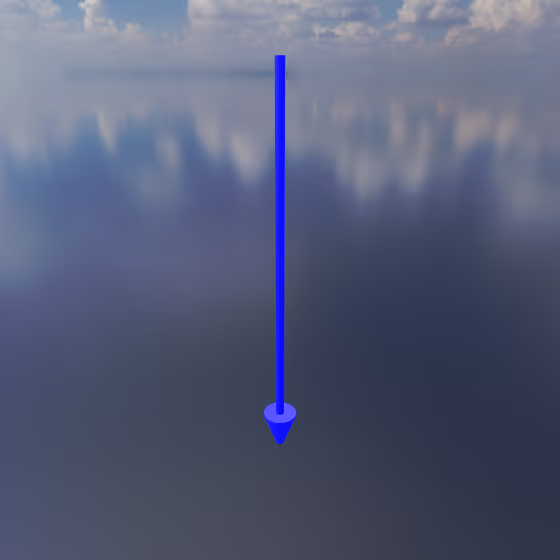
The Delay Line connects an Audio Input Exciter or Envelope Follower to each of the Mics from which it will receive an audio signal. They appear as blue lines with an arrow indicating the direction of audio signal flow. An Audio Input or Envelope Follower can be connected to many Mics, and will sum the audio signal from all of them. The Delay Line link is used to configure the delay for each Mic's audio signal.
Delay Lines are also how audio flows into and out of FX objects: a Delay Line can carry audio from a Mic or another FX into an FX object, and from an FX object onward to another FX or to an Audio Input Exciter.
Delay Lines can be quickly added by clicking on the Audio Input Exciter, pressing the "C" hotkey, and then clicking on the Mic object to be connected.
Delay Line Properties#
- Tempo Sync: Enable this to provide a beat subdivision for the delay time instead of a raw time duration. When enabled, the Delay slider is replaced by the Sync Division selector.
- Delay: The duration for which the audio signal picked up by the connected Mic will be delayed before being sent to the connected Audio Input Exciter. Note that the Audio Input Exciter itself has its own delay parameter, which is additive to this one.
- Sync Division: The tempo-synced beat division for the delay time, from 1/4 down to 1/32, including dotted and triplet variants.