
Basic Operations
Opening a preset#
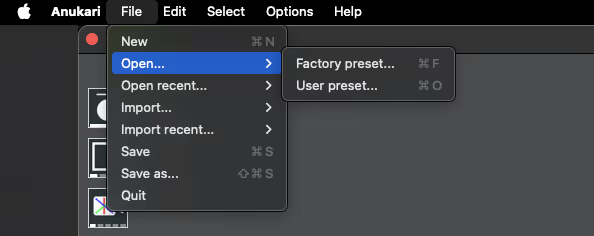
To open a preset in Anukari, click on "File" in the menu bar, select "Open…" and then choose either "Factory Preset…" or "User Preset…" Factory presets are included with Anukari, while user presets are created or added by the user.
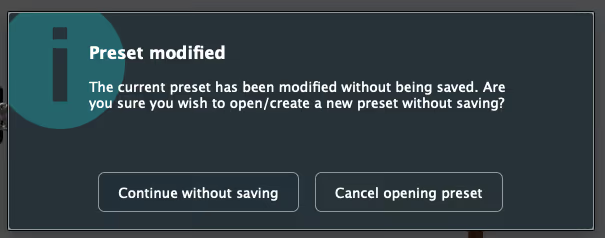
If an unsaved preset is currently open, Anukari will ask if you wish to continue without saving or cancel opening the preset. Choosing to continue without saving will load a new preset and discard any changes made to the previous preset. Choosing to cancel opening a new preset will return the user to the current unsaved preset.
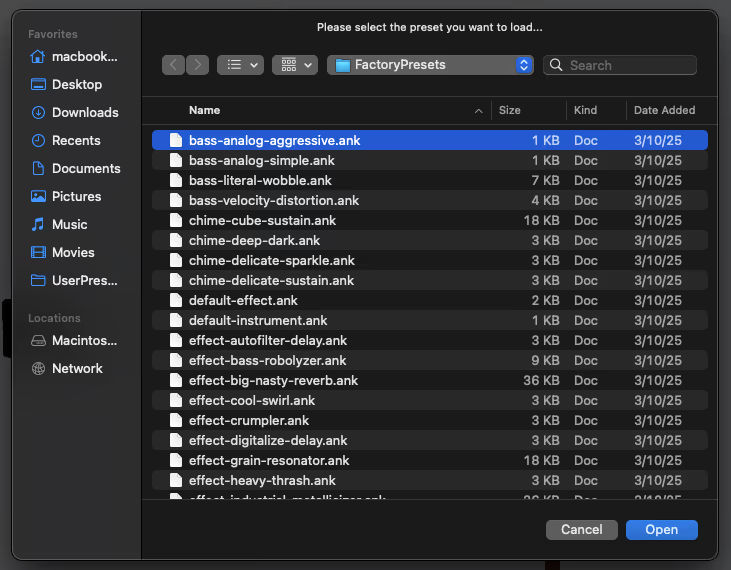
If the user chooses to continue without saving, then a file selection window will open where a new preset can be selected for loading.

Presets can also be quickly loaded and switched via the Preset Selector. There are dropdown menus from which to choose different collections (factory, user, etc.), categories, and preset files to load. The "<" and ">" buttons (previous and next) will instantly cycle through the preset files within the selected category.
Creating a new preset#
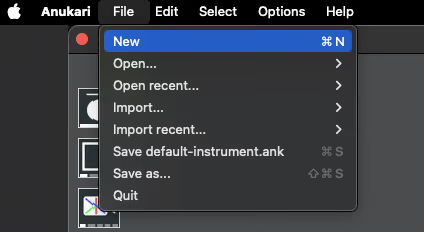
To create a new preset, start by clicking "File" on the menu bar and selecting "New." This will load a preset called "default-instrument.ank." From here, you may edit the Objects and their settings, add new Objects, or make any other changes you wish.
Saving a preset#
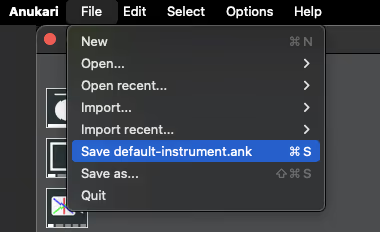
To save a preset, click "File" on the menu bar and select "Save as…"
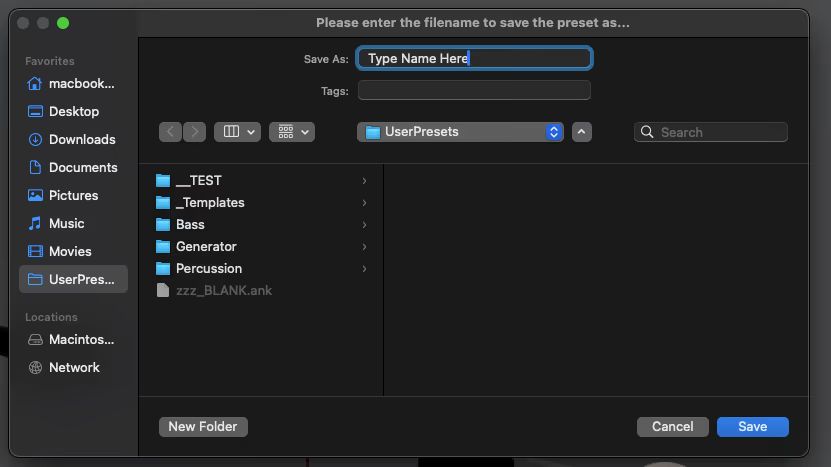
This will open a file saving window where a filename can be created.
If the preset already exists and the user is saving changes to the preset, then the "Save [name of preset file].ank" option will appear. Clicking on this option will save the current changes to that same preset file.
Note: The "default-instrument.ank" file is a system preset that cannot be saved/overwritten, so selecting either "Save default-instrument.ank" or "Save as…" will open a file saving window where a new filename can be created.
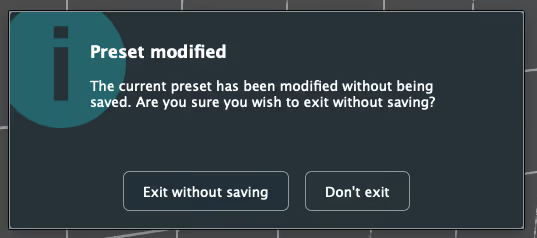
If the user attempts to quit Anukari without saving the current preset, then a prompt will appear asking if the user wants to continue. Clicking "Exit without saving" will close Anukari, and any unsaved preset changes will be lost. Clicking "Don't exit" will return the user to the main Anukari window.
Importing an existing preset#
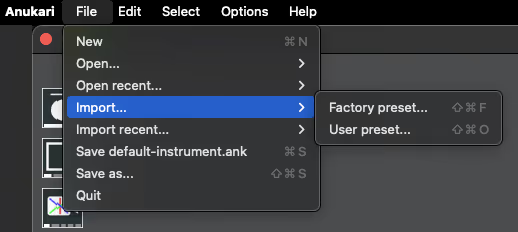
Anukari allows users to add Objects and settings from one preset to another by importing preset files. To do this, click "File" on the menu bar, select "Import…" and then choose either "Factory Presets…" or "User Presets…" Factory presets are included with Anukari, while user presets are created or added by the user.
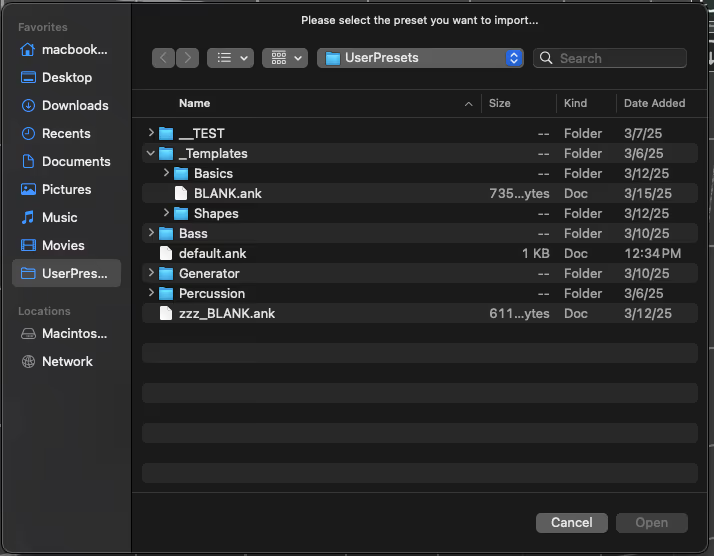
Once either "Factory Presets…" or "User Presets…" is selected, a file selection window will open and allow the user to choose which preset file they wish to import.
Objects from the imported preset file will be added to the current preset, which the user may then adjust or reconfigure as needed.
Saving a preset file from here will include all Objects and settings that are present in the current preset.