
Installation & Licensing
To install Anukari, download the installation file from the download page. Select your operating system (Windows or macOS) and then click the button labeled "Download." From here, your web browser will download and save the installation file to its download folder. For Windows, this will be a .exe file. For Mac, it will be a .pkg file.
When the download is complete, open the download folder and run the installation file. Follow the onscreen instructions. Once the installation has finished, you can run Anukari.
The first time you launch Anukari, it will walk you through the initial setup. You will be prompted to choose between entering a license key to use the full paid version of the software or continuing without a license key to use the free demo.
The free demo has all of the features of Anukari, with no restrictions. To activate it, Anukari will ask for your email address and send you a 6-digit activation code. Once you enter the code, the demo remains active for 7 days. If you try the free demo and would then like to purchase a license for the full version, you can buy Anukari at any point.
Once you have completed payment for the full license, you will receive an email with your 24-character license key (e.g., 123ABC-123ABC-123ABC-123ABC).
Once you have the license key, and if you are launching Anukari for the first time, click the "I have a license key" button at the first prompt:

If you have already launched Anukari in free demo mode, click the "Enter License Key" button in the upper-right portion of the main Anukari window:

In each case, follow the prompts to input your license key and activate the full software.
Multiple Installations#
An Anukari license key entitles you to have Anukari installed on three (3) personal devices at a time. For example, you could have Anukari installed on your Windows desktop, your Windows laptop, and your macOS laptop.
If you have reached the limit of installing Anukari on three personal devices and attempt to enter your license key on an additional device, the key will not activate the full version of the software.
To install Anukari on a different device, it will be necessary to deactivate the software on one of the existing devices.
Deactivating Anukari on an Existing Device#
To activate Anukari on a different additional device, you can deactivate it from one of your original three devices on your account page. There, you will see a panel showing your license key, the number of devices it is installed on, and information about each of those devices. Find the device on which you wish to deactivate Anukari, and click the "DISABLE" button.
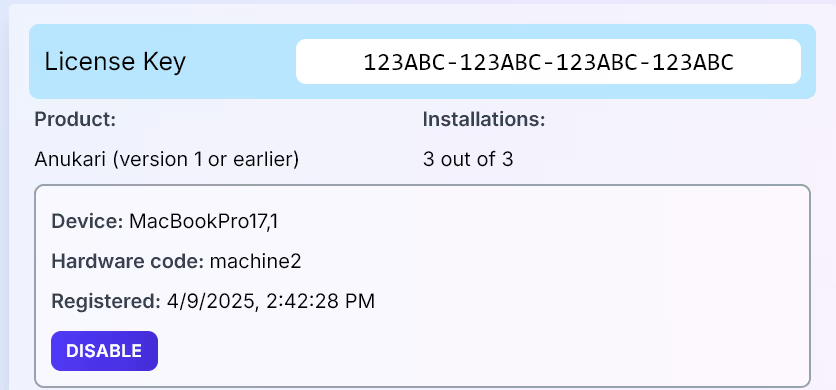
Once you have disabled an existing device, Anukari will revert to free demo mode on that device. You can then enter your license key on a different device to activate the paid version there.
Note that this operation is reversible and repeatable: You can deactivate (or reactivate) your Anukari license on any device at any time, up to three devices.